
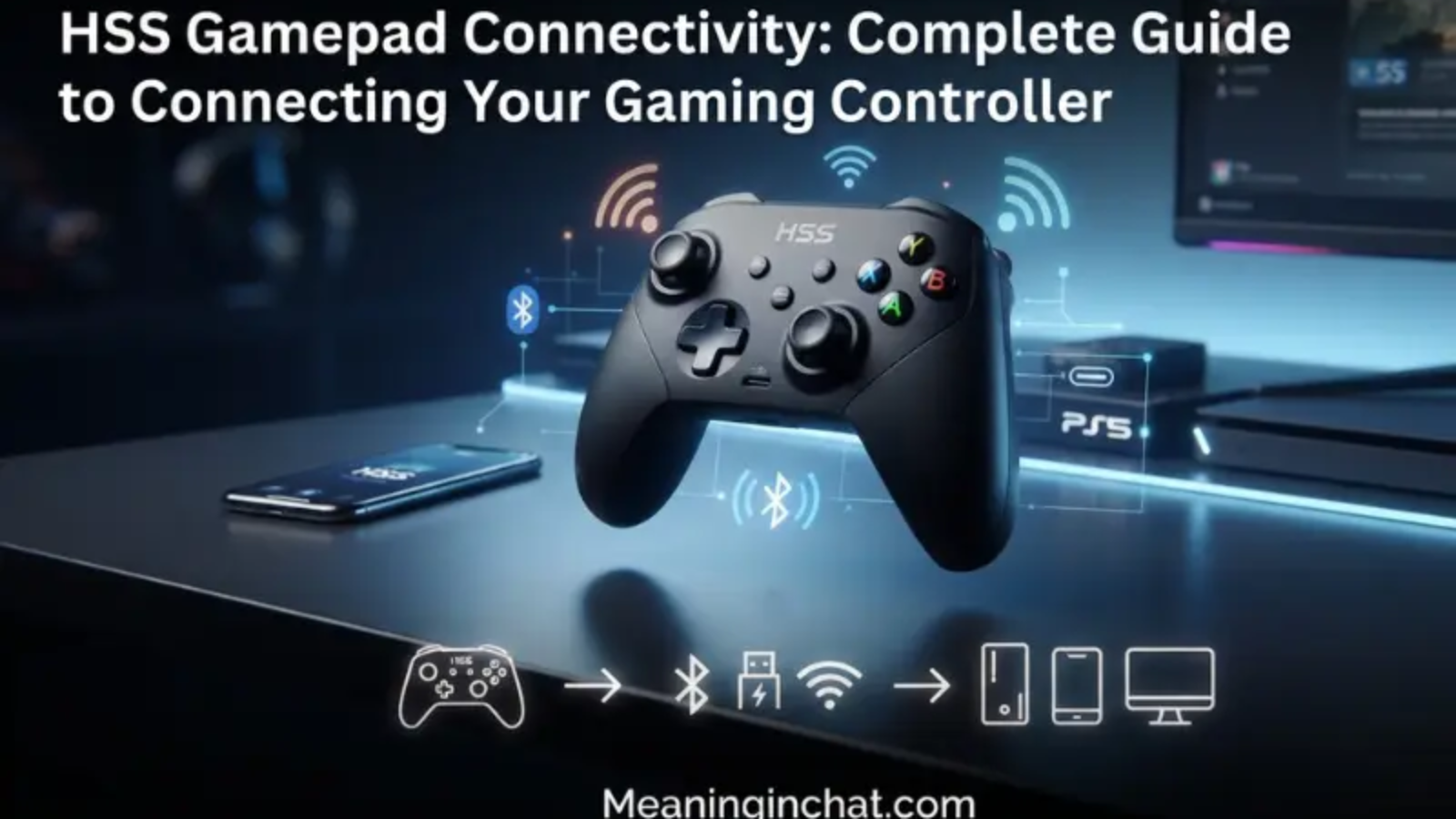
A gaming controller tabhi useful hota hai jab woh device ke saath reliably connect ho. HSSGamepad connectivity ke issues mein controller ka Bluetooth list mein appear na hona, connection ka baar-baar drop hona, USB se detect na hona, ya connected hone ke bawajood game mein input na dena shamil ho sakta hai.
Online guides mein HSSGamepad ke different connection methods—Bluetooth, USB aur kuch models mein 2.4GHz wireless receiver—ka zikr milta hai. Exact buttons, modes aur compatibility model ke mutabiq change ho sakti hai, isliye kisi ek model ke button combination ko universal rule nahi samajhna chahiye.
Is guide ka purpose simple hai: pehle problem identify karein, phir safe aur practical troubleshooting steps follow karein.
HSSGamepad Connectivity Ka Matlab Kya Hai?
HSSGamepad connectivity se murad controller aur gaming device ke darmiyan communication hai.
Ye communication different methods se ho sakti hai:
- Bluetooth — wireless connection without a cable
- USB — direct wired connection
- 2.4GHz receiver — supported models mein dedicated wireless connection
Har method ke advantages aur troubleshooting requirements alag ho sakte hain.
Sabse Pehle Apni Problem Identify Karein
| Problem | Pehla Check |
| Controller Bluetooth mein nahi aa raha | Pairing mode |
| Connect hota hai phir disconnect | Battery + interference |
| PC USB se detect nahi karta | Cable + USB port |
| Connected hai lekin game mein kaam nahi karta | Input mode/game support |
| Buttons late respond karte hain | Wireless interference + connection method |
| Ek device par chalta hai, doosre par nahi | Device compatibility/settings |
Is table ka purpose unnecessary fixes try karne se bachna hai.
HSSGamepad Bluetooth Se Connect Nahi Ho Raha
Sabse common problem ye hoti hai ke controller device ki Bluetooth list mein appear nahi hota.
Controller Charge Karein
Wireless troubleshooting se pehle controller ko sufficiently charge karna sensible hai. Low power wireless stability ko affect kar sakti hai, aur multiple troubleshooting sources battery ko common cause ke taur par identify karte hain.
Controller Ko Pairing Mode Mein Rakhein
Sirf controller ko turn on karna aur discoverable/pairing mode activate karna same cheez nahi hai.
Apne particular HSSGamepad model ke manual mein pairing-button combination check karein. Rapid LED blinking aksar discovery mode indicate karti hai, lekin LED behavior model ke hisaab se different ho sakta hai.
Bluetooth List Refresh Karein
Apne phone, tablet, PC ya doosre supported device par Bluetooth settings open karein aur available devices ko scan karein.
Agar purana HSSGamepad entry saved hai aur connection fail ho raha hai, us entry ko remove/forget karke fresh pairing try karein.
HSSGamepad Pehle Connect Tha, Ab Nahi Ho Raha
Agar controller pehle properly kaam karta tha, to completely new setup karne se pehle old pairing information check karein.
Bluetooth settings mein saved HSSGamepad entry remove karein, controller ko restart karein, phir fresh pairing mode activate karein.
Purani pairing information kabhi-kabhi new connection attempts ke saath conflict kar sakti hai.
HSSGamepad Baar-Baar Disconnect Ho Raha Hai
Random disconnections ke several possible causes hain.
Battery
Wireless controller ki battery sufficiently charged honi chahiye.
Wireless Interference
Bluetooth aur 2.4GHz wireless devices nearby wireless signals ke saath interference experience kar sakte hain.
Router, multiple Bluetooth accessories, wireless peripherals aur other 2.4GHz devices ke aas-paas problem ho to controller ko closer range mein test karein.
Distance
Initial pairing aur troubleshooting ke waqt controller ko device ke relatively close rakhna better hai.
Agar connection close range par stable hai lekin distance badhate hi fail hota hai, environmental interference ya signal strength investigate karni chahiye.
Connected Hai Lekin Game Mein Controller Kaam Nahi Kar Raha
Ye situation confusing hoti hai because operating system controller ko recognize kar sakta hai, lekin game input receive nahi karta.
Possible reasons include:
- Game controller support nahi karta
- Controller wrong input mode mein hai
- Another controller-mapping application input intercept kar rahi hai
- Game-specific controller settings disabled hain
- Operating system ne device ko expected input type ke taur par register nahi kiya
Is case mein pehle operating system ke controller/input settings mein check karein ke button presses actually detect ho rahe hain.
Agar OS input detect karta hai lekin particular game nahi karta, problem likely game configuration ya compatibility layer mein ho sakti hai.
HSSGamepad Input Lag Ya Delayed Response
Input lag ka matlab hai button press aur on-screen response ke darmiyan noticeable delay.
Wireless interference, weak connection, background software, ya particular connection method is experience ko affect kar sakte hain.
Troubleshooting ke liye:
- Controller ko device ke paas test karein.
- Nearby wireless devices temporarily reduce karein.
- Controller ko sufficiently charge karein.
- Background applications close karke compare karein.
- Agar supported ho, wired USB connection se test karein.
Agar wired mode mein problem disappear ho jaye, wireless connection ko further investigate karna useful hai.
6. USB Connection Kaam Nahi Kar Raha
Agar wireless connection ki jagah USB use kar rahe hain aur PC controller ko recognize nahi karta, to simple checks se start karein.
USB Cable Check Karein
Har USB cable data transfer support nahi karti. Kuch cables charging ke liye designed hoti hain.
Isliye known-good data-capable cable use karke test karein.
Different USB Port Try Karein
Controller ko doosre USB port mein connect karein.
Agar ek port par fail aur doosre par work karta hai, problem controller ke bajaye original port ya USB configuration se related ho sakti hai.
Device Recognition Check Karein
Windows par Device Manager mein relevant Human Interface Devices ya USB entries check ki ja sakti hain.
Agar device bilkul detect nahi hota, cable, port, controller hardware aur drivers ko systematically isolate karna chahiye.
2.4GHz Receiver Connection
Kuch HSSGamepad variants 2.4GHz USB receiver ke saath work karte hain. Ye Bluetooth se different connection method hai.
Agar receiver method use kar rahe hain:
- Receiver properly connect karein.
- Controller ko correct wireless mode mein set karein.
- Controller aur receiver ko close range mein test karein.
- Agar system receiver ko detect nahi karta, another USB port try karein.
- Model-specific pairing instructions manual se verify karein.
Important: Har HSSGamepad model necessarily 2.4GHz receiver support nahi karta. Is feature ko universal specification na samjhein.
PC Par HSSGamepad Connect Ho Raha Hai Magar Game Detect Nahi Kar Raha
PC gaming mein ek additional layer hoti hai: input compatibility.
Kuch games specific controller input standards expect karte hain. Is wajah se controller Windows mein connected hone ke bawajood game ke andar work nahi kar sakta.
Sabse pehle:
- Windows controller settings mein input test karein.
- Game ke controller settings check karein.
- Game restart karke controller reconnect karein.
- Multiple controller-mapping utilities ek saath active na rakhein.
Agar controller Windows level par properly respond karta hai but one specific game doesn’t, game compatibility ko investigate karein instead of repeatedly repairing Bluetooth.
Android Par HSSGamepad Connection
Android par Bluetooth pairing generally straightforward hoti hai, lekin phone-specific settings interfere kar sakti hain.
Try this order:
Charge → Forget old pairing → Restart Bluetooth → Pairing mode → Fresh connection
Agar controller connected hai but game mein response nahi deta, check karein ke particular game external controllers support karta hai.
Android ke different manufacturers ke Bluetooth menus aur battery-management behavior different ho sakte hain, isliye exact menu names phone model ke mutabiq vary karte hain.
iPhone/iPad Par Connection
iPhone ya iPad par controller compatibility controller model aur operating-system support par depend karti hai.
Agar device controller ko detect nahi karta:
- Controller charge karein.
- Old Bluetooth entry remove karein.
- Controller ko proper pairing mode mein rakhein.
- Bluetooth settings se fresh pairing karein.
- iOS/iPadOS aur controller compatibility verify karein.
Agar pairing successful ho lekin game mein controller work na kare, game ke controller support ko check karna zaroori hai.
Smart TV Par HSSGamepad
Smart TVs mein controller support manufacturer aur operating system ke mutabiq vary karta hai.
Agar Bluetooth pairing successful ho lekin buttons respond na karein, iska matlab ye zaroori nahi ke controller defective hai.
TV ka operating system external game controllers ko limited functionality ke saath support kar sakta hai.
Wrong Connection Mode
Multi-mode controllers mein ek common source of confusion wrong mode hai.
Agar controller Bluetooth ke bajaye kisi aur mode mein start ho raha hai, device usay Bluetooth list mein expected way mein show nahi karega.
Isliye controller ke manual mein available modes aur corresponding LED indicators verify karein.
Online guides mein different HSSGamepad models ke liye different button combinations mention hote hain, isliye ek model ka combination doosre model par blindly apply nahi karna chahiye.
Firmware Aur Driver Problems
Persistent connection problems kabhi-kabhi software side se bhi aa sakti hain.
PC par outdated Bluetooth ya HID-related drivers device recognition ko affect kar sakte hain. Controller firmware bhi relevant ho sakta hai if the manufacturer provides an official update mechanism.
Best practice: firmware update ke liye random third-party files download karne ke bajaye controller manufacturer ke official documentation ko use karein.
Quick Troubleshooting Order
Agar aapko lengthy guide follow nahi karni, ye order use karein:
Charge the controller
↓
Restart controller + device
↓
Remove old pairing
↓
Activate correct pairing mode
↓
Pair again at close range
↓
Reduce wireless interference
↓
Test another connection method if supported
↓
Check OS/game input detection
↓
Investigate drivers or firmware
↓
Consider hardware failure
Ye order simple problems ko pehle eliminate karta hai aur unnecessary advanced troubleshooting se bachata hai.
When Is It Probably a Hardware Problem?
Software troubleshooting ke baad bhi controller kisi supported device par consistently fail ho, to hardware issue possible hai.
Warning signs include:
- Controller charging properly nahi karta
- USB connection physically unstable hai
- Wireless connection extremely short range par bhi fail hota hai
- Multiple devices par same problem repeat hoti hai
- Buttons ya joysticks bhi independently malfunction kar rahe hain
Aise situation mein controller ko open karne ke bajaye manufacturer/seller ki warranty or support policy check karna safer approach hai.
How to Prevent Future Connectivity Problems
A few simple habits connection issues ko reduce kar sakti hain:
- Controller ko regularly charge rakhein.
- Unnecessary old Bluetooth pairings remove karein.
- Controller ko excessive wireless interference se door rakhein.
- Compatible cables use karein.
- Operating system updates maintain karein.
- Manufacturer ke official firmware instructions follow karein.
- Controller ko unnecessary physical damage se protect karein.
See Also:
- Truzio Explained: What It Is, Features, Uses & Complete Guide 2026
- Software Technology: Meaning, Types, Uses & Complete Guide 2026
- Tikcotech: Meaning, Features, Uses & Complete Guide 2026
FAQs
Why is my HSSGamepad not showing in Bluetooth?
Make sure the controller is actually in pairing mode, has sufficient charge, and isn’t already connected to another device. Removing an old saved pairing and trying again can also help.
Why does my HSSGamepad keep disconnecting?
Common possibilities include low battery, wireless interference, pairing conflicts, or device/software issues. Test the controller close to the host device and after removing old pairings.
Why is HSSGamepad connected but not working in my game?
The operating system may recognize the controller while the game does not support its input mode or controller type. Check OS-level input detection first, then the game’s controller settings.
Can I use HSSGamepad with USB?
Some HSSGamepad variants support wired USB connectivity, but exact capabilities depend on the model.
Does every HSSGamepad support 2.4GHz?
Not necessarily. Online descriptions often discuss Bluetooth, 2.4GHz and USB together, but HSSGamepad does not appear to represent one universally documented hardware model. Check your specific controller’s manual before assuming a feature is available.
How can I reduce HSSGamepad input lag?
Start by checking battery level, reducing wireless interference, moving closer to the device, and testing a wired connection if supported. This can help determine whether the delay is related to the wireless connection.
Why does my controller work on one device but not another?
The second device may have different Bluetooth support, drivers, controller compatibility, or game/input settings. Compare the controller on both devices to isolate where the problem occurs.
Conclusion
HSSGamepad connectivity problems are usually easier to solve when you identify the exact failure first instead of changing several settings at once.
Bluetooth pairing problems call for pairing-mode and saved-device checks. Random disconnections point toward battery, interference, or connection-state issues. USB failures require cable, port, and device-recognition checks, while a controller that connects but fails inside a game may have an input-compatibility problem.
Because the HSSGamepad name appears across different controller variants, specifications such as connection modes and button combinations should always be confirmed for the exact model rather than assumed from another guide.